For schools
One school. One app.
Set up with you.
Your school manager configures the classes, the subjects and the timetable, and imports the roster from one file. Your teachers mark attendance and set homework that lands with one class rather than the whole school. Your librarian runs the catalog. Parents get the day as it happens, on the phone they already carry.
Every screen below was recorded in the live app. Nothing on this page is a mockup, and nothing on it is a plan.
We onboard schools ourselves. There is no self-serve sign-up: a short conversation, then we set your school up with you.
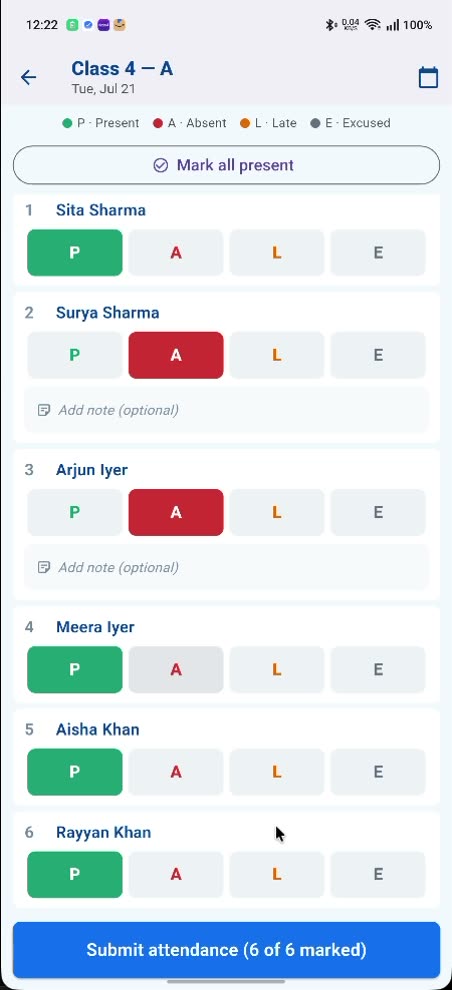
What setting up buys you: a register a teacher finishes in the time it takes to say good morning.
Getting on
Setting up
Seven ticks, one roster file
The school manager's home screen carries the whole of setup as a checklist, and it stays there until every line is done:
- School KYC verified
- Classes configured
- Subjects configured
- Timetable configured
- Teachers imported
- Students imported
- Parents imported
The last three lines are one upload. Upload roster CSV sits in the school manager's menu and takes a file with a row per child: their name, the grade and section they belong in, and a parent's name and mobile number. Each row creates the family, reserves the child's place in that class for the academic year, and texts that parent an invite. Staff come in the same way, in their own file.
Rows that don't work come back to you individually (row 14, this column is missing, this number isn't a valid mobile), so a messy export doesn't cost you the whole upload.
A reserved place becomes a real one when the parent accepts. That's worth knowing before your first register: the child is on the list from the moment you upload the file and a teacher can mark them one by one, but Mark all present covers only the children whose parents have accepted. Chasing the last few acceptances is usually the actual day-one job. The setup itself is the easy part.
In the app, your office invents no passwords. The import texts the invite, and staff and parents sign in with the mobile number the school already has on file plus a one-time code, so there's no list of logins to keep. Children sign in to their own YoungCreator account, and the school view appears there once their place has gone from reserved to active. How that works for an imported roster is covered in onboarding with our team, rather than a password the import hands out. Staff who also want the browser panel need a password there, and an email address on their record to reset it. We set those up with your office rather than mailing them out from the import.
The school manager's view: counts at the top, the checklist underneath.
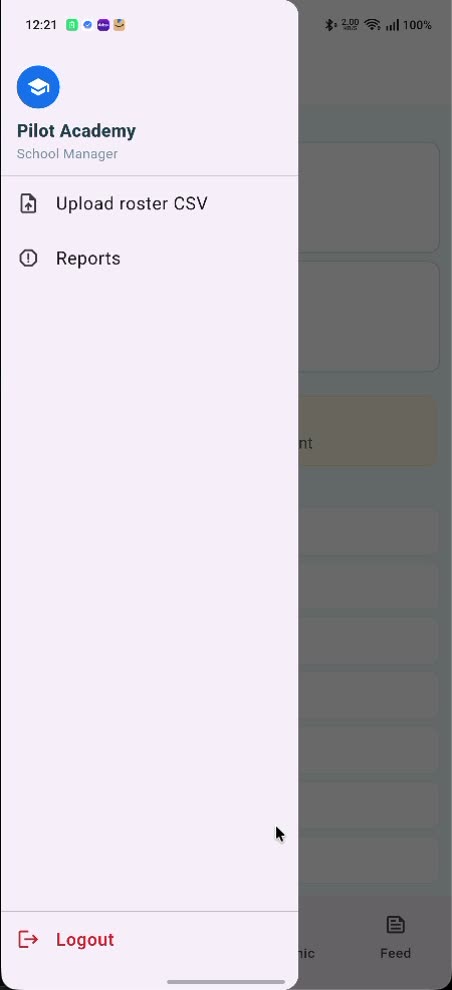
Upload roster CSV: the whole school, in one file.
Classes, subjects and the timetable
Academic setup is three rows, in the order you'd do them anyway. Classes & sections is where a class becomes a real thing (Class 4, Section A) with a class teacher named on it. Subjects & teachers holds the subject list for the school, and then assigns each subject to a teacher per class: Math in Class 4A is Kate Bishop's, and Math in Class 5B belongs to somebody else.
Timetable is periods and a class grid: you define the periods once, then fill the week per class. It's the same grid the student and the parent read later, so there's no second copy to keep in step.
All of it hangs off an academic year with terms inside it. Next year starts as a new year rather than as an edit of this one, which is what keeps last year's attendance and homework where you left them.
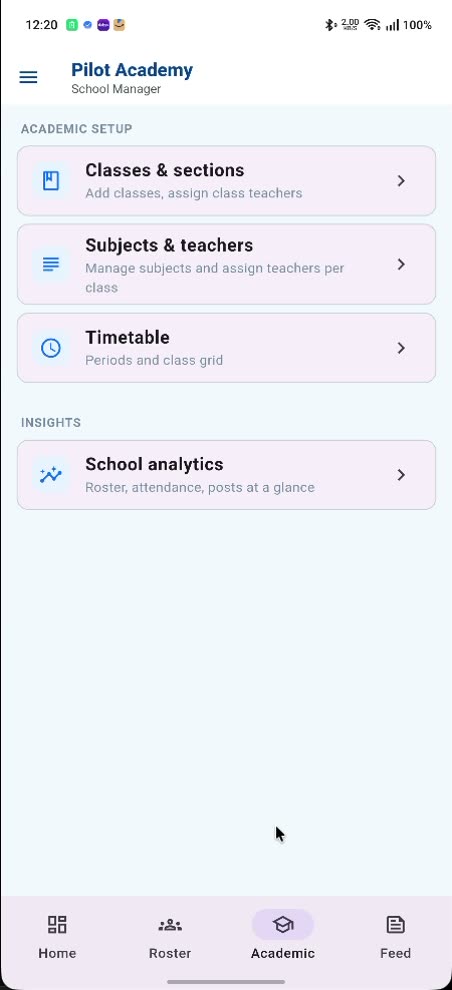
Three rows: classes, subjects, timetable.
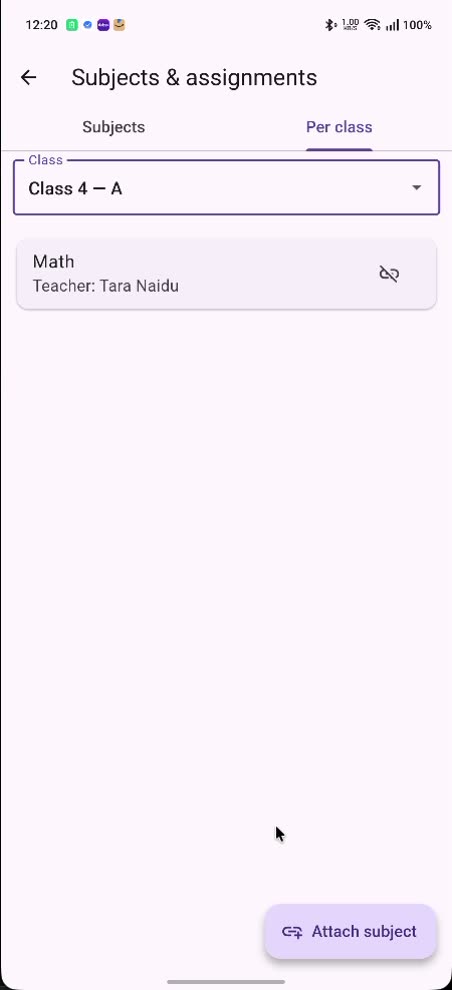
Subject to teacher, one class at a time.
The teacher's day
Register, homework, done
Attendance in seconds
A teacher opens their class (Class 4A, with today's date at the top) and sees every child in a numbered list with four buttons each: P, A, L and E, for Present, Absent, Late and Excused, colored so the finished register can be read at a glance.
Most mornings, everybody is there. Mark all present sits above the list and does exactly that in one tap; the exceptions are then a tap each. Any child who isn't present gets an optional note field of their own (“at the dentist”, “left after lunch”), and it stays on the record.
The submit button counts as it goes, so nobody is left out by accident. It opens at “Submit attendance (0 of 6 marked)” and reads “(6 of 6 marked)” when the register is done.
Every parent hears about it. The first time a child is marked present on a given day, an arrival is recorded and every parent in that child's family is notified: the “Arrived at 09:30 AM” line on their card. It costs the teacher nothing extra; it's the same tap.
One tap for the class, one tap each for the exceptions.
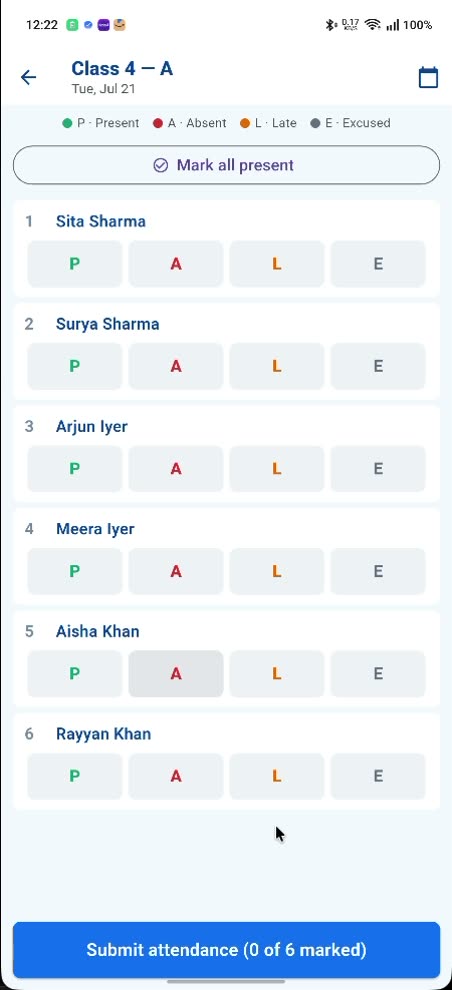
The register as it opens: nobody marked yet, and the button says so.
Homework and marking
Homework is a post with a due date on it, aimed at a group. Aim it at the class and it lands on those students' phones and in their parents' feed at the same moment. Aim it at a single subject within the class and it reaches the students taking that subject. Parents follow the class, not each subject, so a subject-tagged post stays between the teacher and the students. Either way it is labeled Homework, tagged with the class and the subject, and carries a Submit button.
A student hands work in from that same card, once: the app refuses a second submission for the same piece rather than leaving you to work out which one counts. The teacher gets a list per assignment: who has submitted, when, and which of them arrived after the due date, flagged automatically rather than worked out by hand. Anything not yet looked at sits in an awaiting-grading queue, so a free period has somewhere obvious to start.
Marking a submission means writing feedback back to that child and stamping it reviewed by you. It is a comment on one piece of work. Assessment, ranking and reporting are not part of what we've built, and this page won't pretend otherwise.
The submission does not wait on a parent. YoungCreator normally holds a child's post until a parent approves it. Work tagged to a class is the exception in both directions: your homework reaches the class without a parent's sign-off, and the child's answer goes straight to the teacher. Enrolling the child is the consent for that exchange.
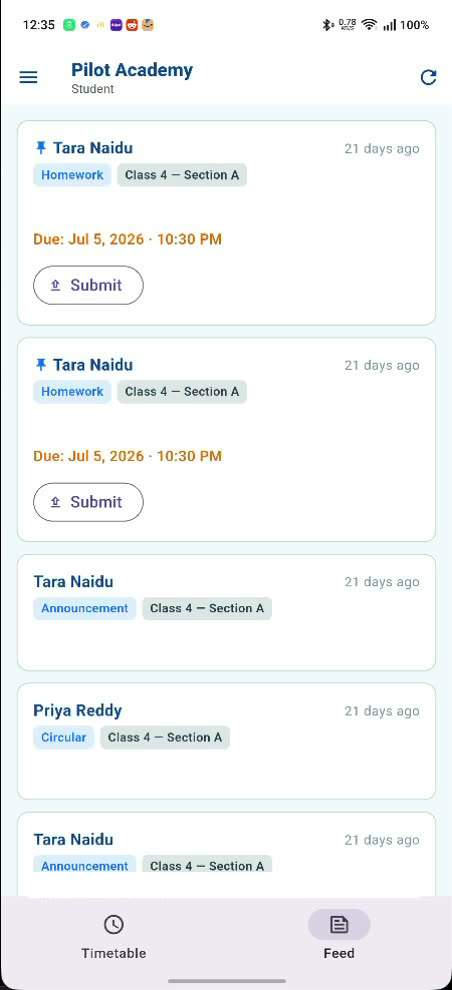
The same homework, on the student's phone: due date, class tag and Submit.
Communication
Reaching exactly the right people
Every post is typed and aimed
There is no general broadcast. Each post has a type (Announcement, Homework, Circular, Showcase, Diary Entry or Class Story), and each one has to name the group it is for before it can be published. Pick “Class 4 Section A” and it appears in that section's students' feeds and in their parents' feeds, and nowhere else in the school.
That's what makes the parent's screen readable. A parent opens your school under their own name, sees each of their children with their class, the arrival line for today, and buttons for Attendance, Timetable and Message. Below it sit the announcements: the ones that were aimed at them, not the ones that were aimed at Year 6.
School posts don't queue for approval. Your announcement does not wait on a parent to release it; the school moderates its own feed, and enrollment is the consent. What the school does not get is a say over the child's communication side of YoungCreator. Their posts, their friends and their profile stay with their parent, exactly as before you joined.
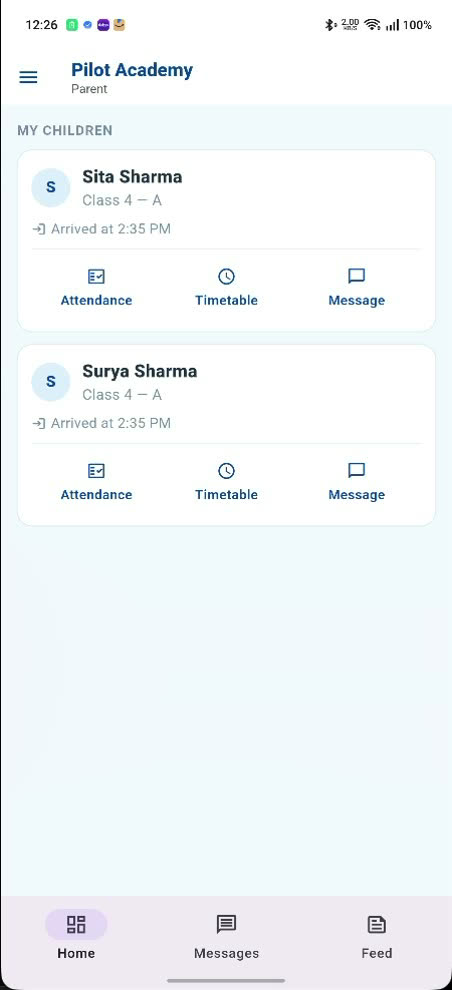
The parent's side of the same school: their children, their classes, today.
Parent-teacher messages that can't go wrong
A parent starting a message makes two choices before they can type: which of their children this is about, and which teacher. The only teachers on that second list are the ones who actually teach that child.
This isn't a tidy menu hiding a wider door. The pairing is checked on the server every time a message is sent: the sender has to be a parent of the tagged child and the recipient a teacher who teaches them, or the message is refused outright. A parent cannot reach a teacher who has never taught their child, and no child is in the thread at all: the conversation is between the two adults, about the student it is tagged to.
Because every thread carries the child's name, a teacher opening one already has the context, and the school keeps the record.
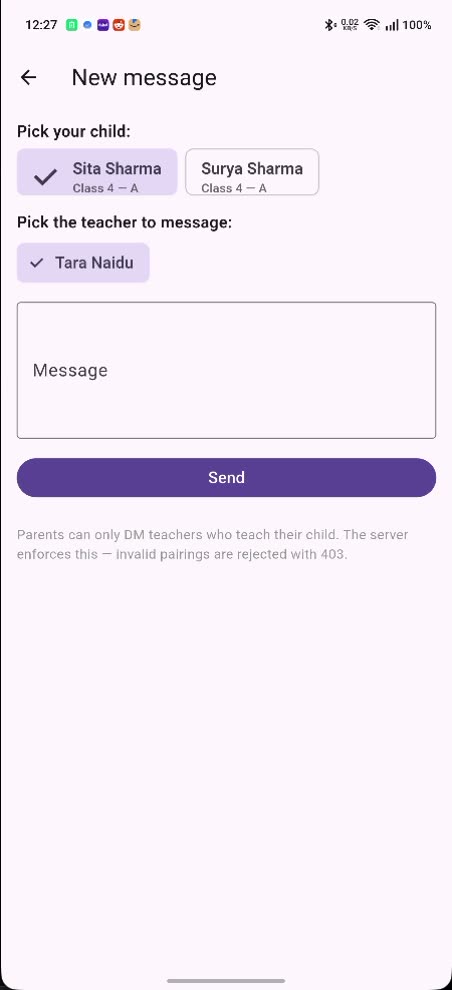
Two picks before a word is typed: which child, and which of their teachers.
The library desk
Your librarian signs in to their own view of the same school. The catalog searches by title, author or ISBN, an Available filter hides whatever is already out, and Add book puts a new title on the shelf.
Issuing a book to a student sets a due date; returning it puts the copy back, so how many copies are on the shelf follows the issues rather than being counted by hand. The Issues tab is everything currently out, oldest due date first, and Overdue is the list nobody wants to be long. Both are a tap away from the desk rather than a report somebody has to run.
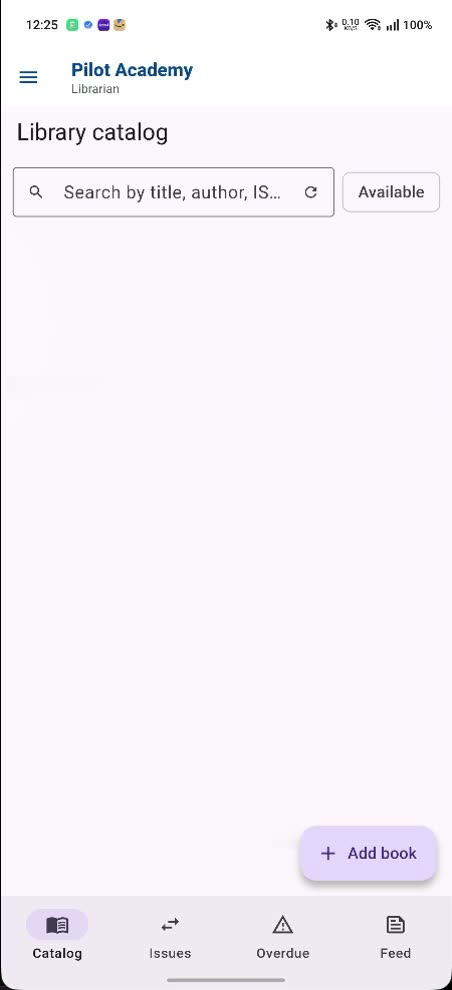
Catalog, Issues, Overdue: the librarian's three tabs.
Who sees what
Six roles, six views
One person, one account, and the app opens on the desk that person works at, with one job in front of them rather than six menus to ignore.
- Student opens on their class feed: the homework waiting on them with its Submit button, and their timetable.
- Parent opens on their children: each one's class and arrival, their attendance and timetable, the posts aimed at their class, and messages with their teachers.
- Teacher opens on the classes they teach: the register, homework and submissions, and threads with those children's parents.
- Principal opens on the school-wide view: circulars, and the reports raised by staff and families.
- School manager opens on setup and the roster: classes, subjects, the timetable, imports and invites.
- Librarian opens on the desk: the catalog, issues and overdue.
What families get
You're joining an app parents already trust
YoungCreator was a child-safe communication app before it was a school app. On the communication side, a child's post, story, comment, buddy request and even a change to their own profile waits in their parent's approval queue before it goes anywhere. Screen-time limits, a small circle of trusted adults and an SOS button come with the account.
Joining a school doesn't loosen any of that, and it doesn't hand you any of it. Your class posts flow without a parent in the middle; their child's friendships and posts carry on without a teacher in the middle. Two systems, one app, and a clear line between them that families can see for themselves.
See the parent's side in full. It's the page to forward when a family asks what they're being signed up to.
Getting started
How a school comes on board
Schools do not sign themselves up, and that is deliberate. We set the school up with you, so the roles, the classes and the timetable are right before a single family is invited in.
-
Tell us about your school
Send us your name, roughly how many students and staff you have, and what you most want to fix first, whether that is attendance, parent communication or homework. A short message is enough to start.
-
We go through your requirements together
A call to understand how your school actually runs: your class and section naming, your periods and timetable, which staff need which desk, and what you already use that this would sit beside or replace.
-
We build your panel
We verify the school, then configure classes and sections, subjects and who teaches them, your period grid and the academic year. You get a checklist that shows exactly what is done and what is still outstanding.
-
We turn on the roles you need
Principal, school manager, teacher and librarian each open on a different desk, and students and parents get their own view. You tell us who holds what, and we set the accounts up so nobody arrives to a screen that means nothing to them.
-
Your roster goes in as one file
Students, parents and staff import from a CSV rather than being typed in one by one. Each student row reserves that child's place in a class; the place becomes an active enrollment once their parent accepts.
-
Families are invited by text
Invites go out by SMS to the mobile numbers on your roster. A parent accepts, and from that point their child is on the register and the class feed reaches them. Chasing the last few acceptances is the real day-one job.
-
Your staff start using it
Teachers take the register, post homework and work through submissions from their phones. Leadership watches the roster and the reports. We stay with you through the first weeks rather than handing over a login and disappearing.
We are onboarding pilot schools one at a time so each one gets set up properly. If that suits you, tell us what you need and we will be straight with you about what we can do today and what is still ahead.
Start the conversation
Tell us about your school and we will come back to you about a pilot.
Staff and families use the same free app, on iPhone and Android. We set your school up behind it.


Questions schools ask
How long does setup take?
Setup is the seven-line checklist on the school manager's home screen, and the app is not the slow part. Your data usually is. A school that arrives with its classes and sections decided, its timetable agreed and a clean roster export can be through the whole list in a day. A school that has to reconcile three spreadsheets first takes as long as that takes. We do it with you either way: there is no self-serve sign-up, and we would rather sit with your team for an afternoon than hand you an empty account.
Do parents need to pay?
YoungCreator is a subscription product for families, priced per child rather than as one fee for the household, and every current plan sits on the pricing page rather than in this answer, so it can only be wrong in one place. There is also a sponsorship scheme that funds subscriptions for families who need one. What that means for your school specifically (who pays for what during a pilot) is one of the first things we work out with you, and we would rather agree it in a conversation than have you read a number here that does not apply to you.
What devices does it work on?
Tablets, laptops, desktops and phones. The app runs on the Android and iPhone handsets and tablets your staff and families already carry, and the screenshots on this page were taken on a phone. Staff who would rather do the desk work on a computer have a browser panel for the school office, so a laptop or a desktop works too. There is nothing to install in a classroom and no hardware to buy, and teachers, parents, students and your librarian all use the same app with different views. Parents join from an invite text and sign in with the mobile number you already hold plus a one-time code. Once they accept, their child's place goes from reserved to active and the child reaches their class through their own YoungCreator account. How that account is first signed into is something we set up with you in onboarding.
Who can message our teachers?
Only a parent of a child that teacher actually teaches, and only about that child. Both halves are checked on the server when the message is sent, not just filtered out of a dropdown, so there is no route to a teacher through a shared link or a guessed name. Students are not in these conversations at all: the thread is between the two adults, tagged to the student it concerns. Every thread stays on the school's record.
What happens to our data?
Your school is its own space, and the app holds that line on every request: a post's audience group, its subject and its class all have to belong to your school or the request is refused. Nothing crosses from one school to another. The roster arrives from you and stays yours. Who inside your school can reach what is a longer conversation than an FAQ answer, and one we would rather have properly: bring whoever owns data protection for you to the walkthrough and we will go through it screen by screen. The paperwork around all of it (the agreement itself, how long records are kept, where they are hosted, and what happens if you leave) is written down as part of the pilot, and we will put it in front of your team before you commit to anything.
Every current plan is on the pricing page.
Bring YoungCreator to your school
We're onboarding a small group of schools. Tell us about yours and we'll set up a walkthrough with your team: the real app, your classes, your questions.