For parents
You see it first. Every time.
Posts, stories, comments, buddy requests, profile edits: they land with you before they reach anybody else. Work tagged to your child's class at school is the one exception, and it gets a section of its own further down.
This is the app from your side: the dashboard, the approval inbox, the switches you hold for each child, and what opens up if their school joins too. Every screen below is from the app itself.
Children never sign themselves up. The account, the age band and the limits are all set from your side.
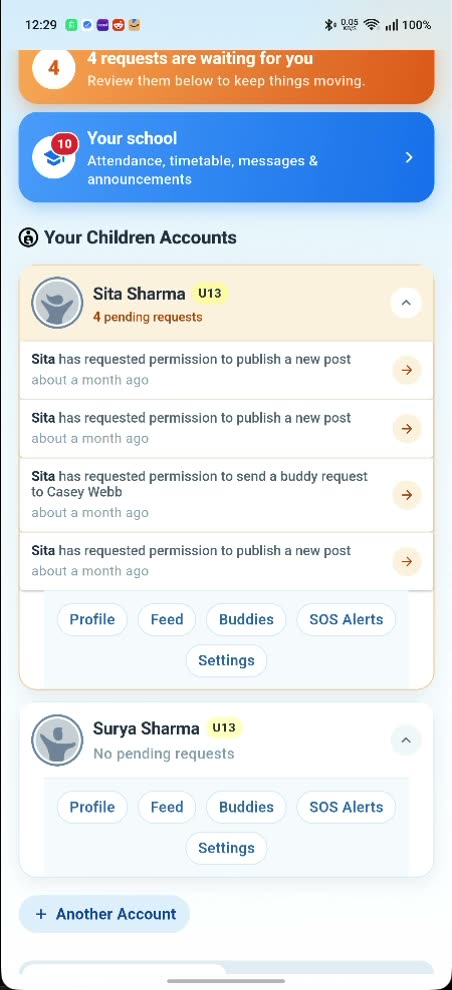
The first thing you see when you open the app: who is waiting, and for what.
Setting up
It starts with your account, not theirs
Sign up and set up your family
You open the family account first, as a parent or guardian. There is no version of this where a child signs up and invites you afterwards: a child account requested by anyone other than a signed-in parent is turned down by the server, with the message “Children accounts can only be created by their parent.”
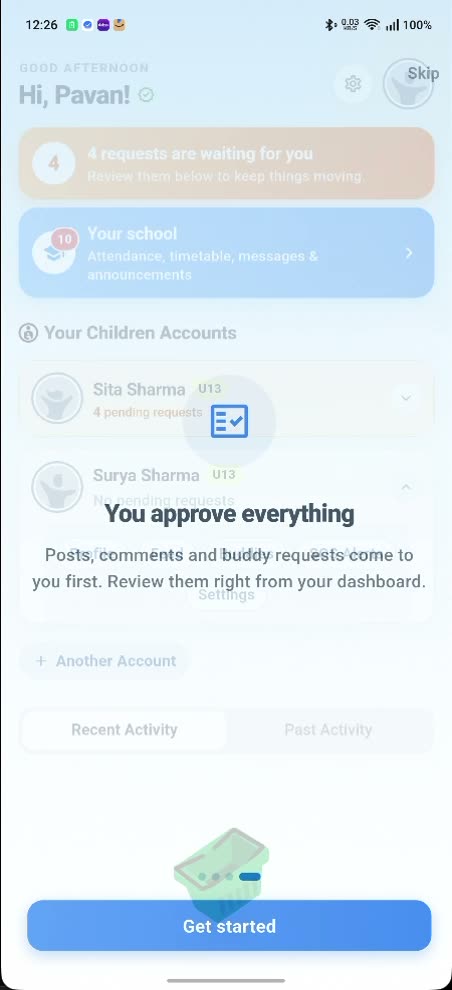
Sign in for the first time and the app tells you what it expects of you before you do anything else. A card sits over the dashboard reading “You approve everything: posts, comments and buddy requests come to you first. Review them right from your dashboard.”
One exception, stated once and honored throughout. If your child's school is on YoungCreator, anything tagged to their class is moderated by the school rather than held for you. That means the school's own posts, and the work your child hands back. Step seven covers it in full.
Add each child
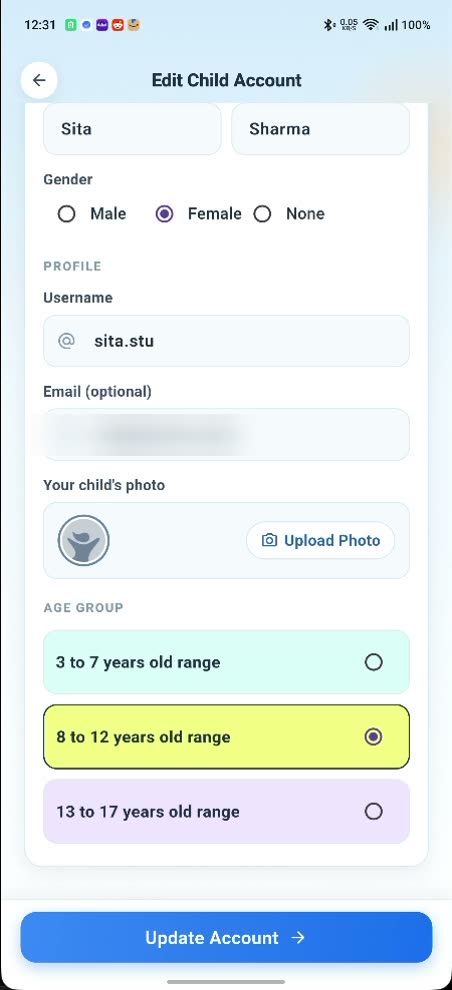
Children are added from inside your account, one card at a time. You fill in their first and last name, pick a username, and add a photo if you want one. The email field is marked optional and a phone number isn't asked for at all. Your child doesn't need an inbox of their own to use YoungCreator, which is one fewer way for anyone to reach them.
Then you choose their age band: 3 to 7, 8 to 12, or 13 to 17. It is your setting, not theirs, and you can change it later from the same screen. The band travels with them as a small badge beside their name (U8, U13 or U18), and it scopes their side of the app: Find Buddies lists children in their own band, and their feed carries the same.
Got another child? Add another account from the dashboard. They all sit under the one family, with one set of controls per child.
Approvals
The inbox the whole thing runs on
Your approval inbox
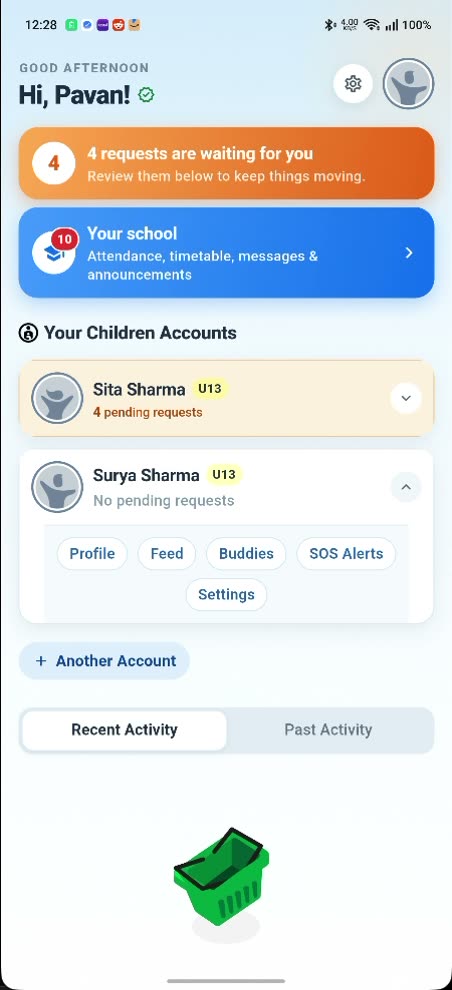
Your dashboard opens with a count, above everything else: four requests are waiting for you. Each child's card carries its own tally underneath their name, four pending requests or none, so you can see at a glance which child is waiting on you.
Open the card and every line says who and what, in plain words: “Emily has requested permission to publish a new post.” “Emily has requested permission to send a buddy request to Casey Webb.” You read the actual post, and you approve or you don't, from the same list.
Posts, stories and comments arrive here. So do buddy requests, held before they are ever delivered. So do profile edits, when a child changes their own name, username or photo, the save is blocked, the old version stays live, and the new one waits for you.
The exception again, because it belongs in this list. School-tagged content doesn't come through this inbox in either direction: class posts are moderated by the school, and a homework submission goes straight to the teacher.
A daily or weekly summary
Under Settings, Scheduling Approval Requests gives you three choices (All, Once/Day or Once/Week), with a preferred time to go with the last two, and a day of the week for the weekly option. On Once/Day or Once/Week you also get a round-up at that time: how many unread notifications are sitting on your account.
It's a summary, not a mute switch. Notifications about individual requests still reach you as your child makes them, and the requests keep stacking up on the dashboard either way, waiting until you open it and clear them.
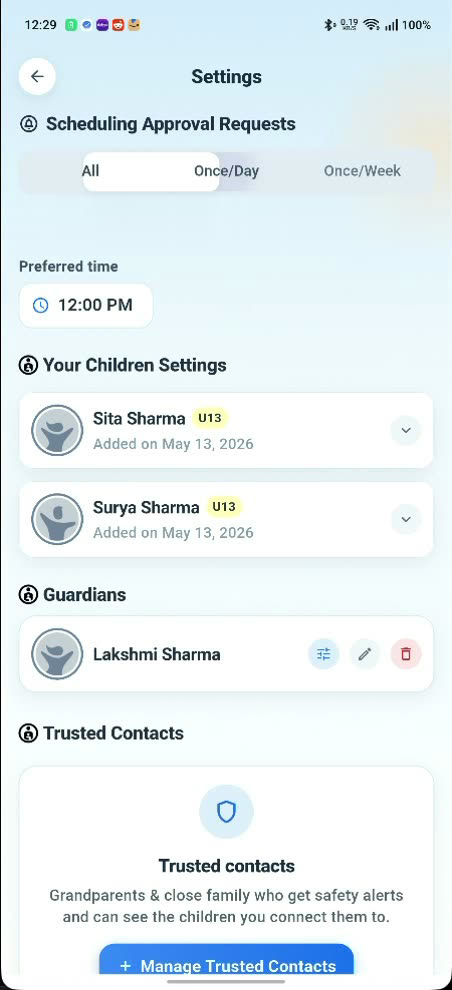
The setting itself: All, Once/Day or Once/Week, with a preferred time.
The queue itself, waiting patiently whichever setting you pick.
Day to day
One card per child, one set of switches
Per-child controls
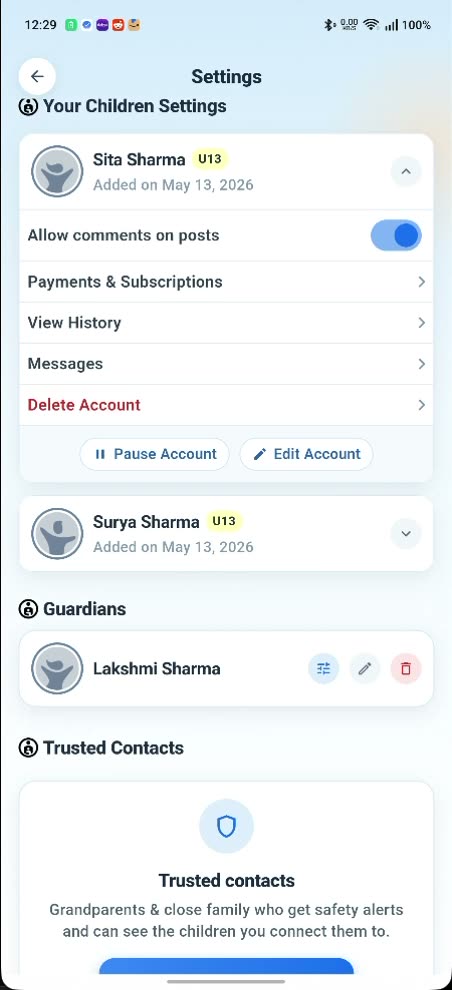
Settings holds a card for each of your children, with their name, their age badge and the day you added them. Open one and everything you hold for that child is in a single list:
- Allow comments on posts: a toggle. Turned off, nobody comments on anything that child publishes.
- View History, so you can look back over what they have been doing rather than only what they asked for.
- Messages: a read-only view of their buddy conversations, including anything the app held or blocked.
- Pause Account, which locks the app without deleting a thing, and Delete Account, which does what it says.
- Payments & Subscriptions, and Edit Account for the name, photo, username and age band.
Screen time is set per child too, as a daily or a weekly allowance. When it runs out the app stops letting them in until the window resets. As the limit gets close, the warning lands on your phone, not theirs, so the nudge to wrap up comes from you rather than from a countdown on their screen.
From the dashboard, each child's card also opens straight into their profile, their feed, their buddy list and their SOS alerts.
Other trusted adults
Most families are more than one adult, so there are two ways to bring someone else in, and they are deliberately different sizes.
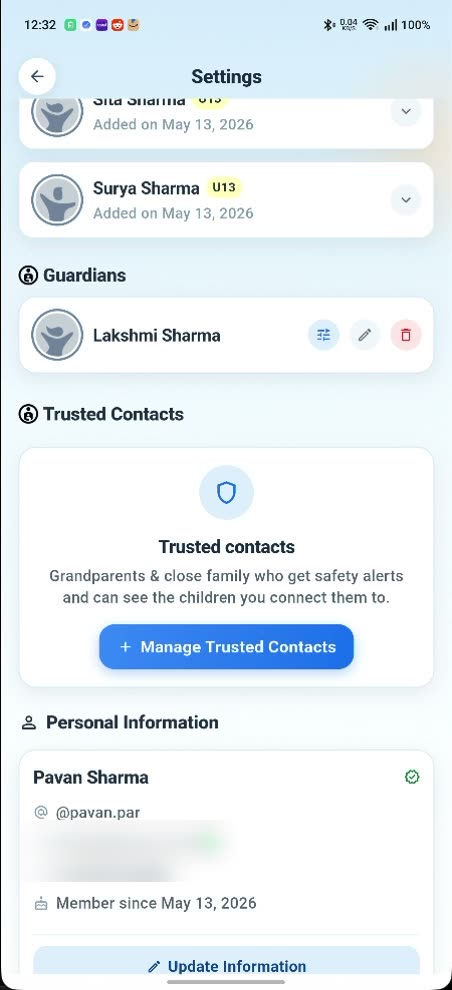
A guardian is a second adult on the family: one per family, added from your settings with their own sign-in. What they can reach is set child by child, so a partner can be given the whole family or only the child they look after. Approving requests stays with the parent who opened the account.
A trusted contact is a smaller circle entirely: grandparents and close family, as the app puts it, who get safety alerts and can see the children you connect them to. Up to three per family, and for each one you choose which child they cover and what they may do: receive alerts, see live location, call the child. They never approve anything.
Adding a trusted contact asks something of you first: the family admin, the parent who opened the account, has to have completed ID verification. It is a gate on handing another adult a view of your child, not a hoop everyone in the family jumps through to use the app.
School
What changes if the school joins
If your child's school joins
A card appears on your dashboard for attendance, timetable, messages and announcements, and behind it is a school section under the school's name, marked Parent. Your children are listed with their class, and under each name the app tells you they arrived at 09:30 PM. That line is a notification too: you're told when your child gets to school, to the minute.
Each child's row opens their attendance record and their timetable, period by period. Announcements from the school sit below, in the same place every time.
Messaging is narrower than it looks. You pick your child, then you pick a teacher, and the only teachers offered are the ones who actually teach that child. The rule isn't politeness, it's enforced on the server, so a message to any other pairing is refused outright. Every thread stays tagged to the child it's about, which is why nothing ever arrives without context.
And here is that exception in full. None of this school traffic runs through your approval inbox. Homework, announcements and circulars come from teachers and are moderated by the school, and it works the same way back: when your child hands work in, the homework submission goes straight to the teacher rather than waiting on your yes. Enrolling your child is the consent for that exchange. Everything on the communication side of the app carries on exactly as before: posts, stories, comments, buddies, profile edits.
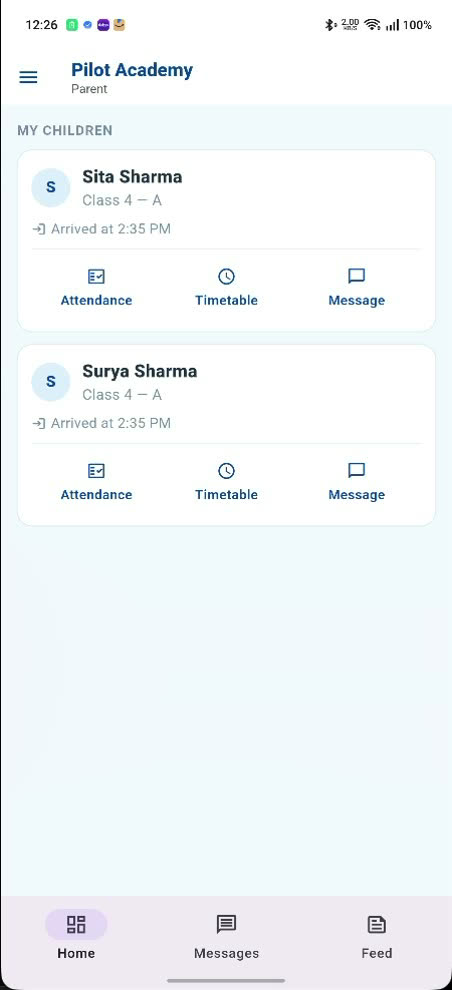
Your children at school: the class, the arrival time and the three things you can do from there.
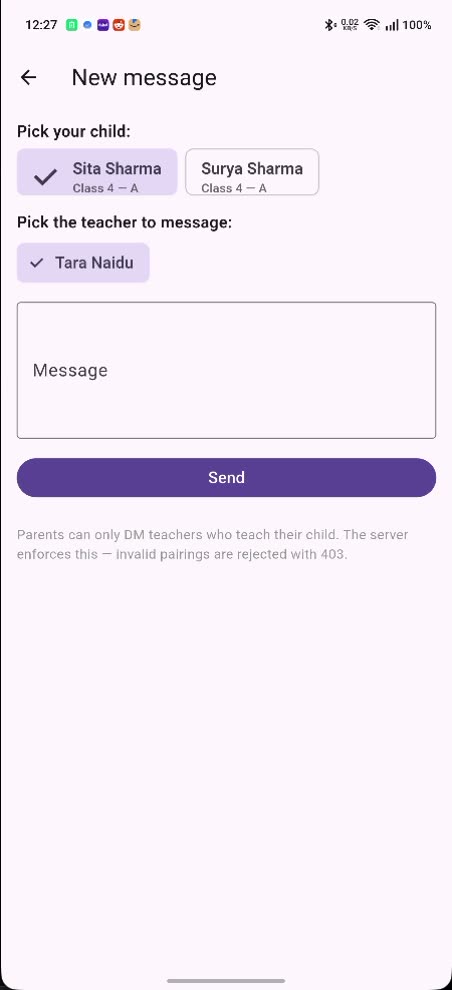
Two picks before you can type: which child, and which of their teachers.
Getting started
Set it up, step by step
About fifteen minutes, most of it spent deciding your child's username. You need a phone for the app and a card for the subscription.
-
Download YoungCreator
The app is free to download on iPhone and Android. Install it on your own phone first: the family account is set up from a parent's device, and you will keep using it to approve things.
-
Create your parent account
Tap 'I'm a Parent or Guardian' on the first screen and fill in your name, email, a username and a password. If you would rather not install anything yet, the same thing works in a phone browser at app.youngcreator.net. Either way the account you create is the adult one: children are added from inside it, never the other way round.
-
Finish your profile and confirm your email
Add a photo and your mobile number so your family can recognise you and we can reach you about your children's accounts. Confirm your email address from the message we send.
-
Verify your identity
You photograph an ID document and your face, and our verification partner checks the two match. This is what proves a real adult is behind the account. Until it is done you cannot open Payments and Subscriptions, and you cannot invite a grandparent as a trusted contact.
-
Add each child
For every child you enter their name, the username and password they will sign in with, and their age band: 3 to 7, 8 to 12 or 13 to 17. The band shapes what they see and who they can find, and only you can change it later. An email address and a photo are optional.
-
Verify your child and start their subscription
You complete your child's verification for them, from your own account, and start the subscription that covers them. Subscriptions run per child rather than as one household fee, and the payment pages open in your browser. Your child cannot get into the app until both are done, so do this before you hand their password over.
-
Watch the dashboard
From here your home screen counts what is waiting for you. Approve or turn down each post, comment and buddy request, look through view history, set a daily or weekly screen-time limit, and add a second guardian or a trusted contact if you want another adult close by.
One thing to know: the school side works differently. If your child's school is on YoungCreator, class posts, homework and the work your child submits back are moderated by the school rather than held for your approval.
Start with step one
Get the app on the phone you will be approving things from.


Questions parents ask
How much of my child's activity can I see?
More than the requests. From their card you can open their profile and their feed, see their buddy list, read View History, and read their messages: a read-only view of their buddy conversations, including anything the app held or blocked. If their school is on YoungCreator you also see their attendance, their timetable and your own threads with their teachers. What you cannot do is post as them or reply inside their conversations; you are reading, not standing in for them.
What if I can't keep up with the requests?
Nothing expires, and on the communication side nothing goes out while you are busy. A request that is waiting stays waiting, and your child is told it is pending rather than refused. The queue sits on your dashboard with a count on it, so a week of it is still one screen to work through rather than a scroll back through your notifications.
Can I add my partner?
Yes. Each family can have one additional guardian, added from your settings with their own sign-in, and what they can reach is set child by child. Approving requests stays with the parent who opened the account, so that is the sign-in to use for the queue itself. There are also trusted contacts for grandparents and close family, who receive safety alerts and see the children you connect them to, and who never approve anything either.
What does ID verification involve?
A one-time identity check, run through our verification partner from inside the app: you photograph an identity document and complete a short face scan, and the result comes back on your account. Expect it early rather than in some far corner of the settings. Your dashboard carries a prompt until it is done, and it is what opens Payments & Subscriptions. Your child's account is verified too, which you start from your side. Until that is finished and a subscription is running, their app stays locked. Adding a trusted contact asks for it as well, and there it has to be the family admin who is verified, because that step hands another adult a window into your child's safety alerts and location.
What does it cost?
Every current plan is on one page. See the pricing page for what the plans cost, and for the sponsorship scheme that funds subscriptions for families who need one. A subscription is per child rather than one fee for the household, and it is started from Payments & Subscriptions on that child's card, which opens the payment pages in your browser. Ending one, or canceling, happens on those same pages. Both ends of a subscription are a browser job the app opens for you, rather than a screen inside the mobile app. The subscription is what keeps advertising out of a children's app.
Every current plan is on the pricing page.
Create your family account
Open the account, add your children, set the age bands and the limits, then see the first request land on your dashboard.